B2B marketing platform
Replacing manual workflows with a template-first automation builder that became OA Plus's most-used feature within 90 days.
Timeline
6 months from discovery to shipped product, spanning initial research, a node-based builder prototype, a business-driven scope pivot, and the template-first redesign.
Background
OA Plus monetises through message volume: every campaign, triggered message, and automated sequence sent generates direct revenue. Before this project, OA Plus had no automation tools. Users who needed triggered workflows were building them in Mailchimp, HubSpot, or ActiveCampaign, taking their message volume off the platform entirely.
+14% increase in messages sent per account in the 60 days following automation activation, compared to the same accounts' pre-launch baseline.
61% of active accounts had at least one live automated workflow running within 30 days of launch
Most-used feature in OA Plus by Month 3, surpassing manual campaign creation across all account types.
Led end-to-end design across both phases: an initial node-based workflow builder that underwent usability testing, and a subsequent pivot to a template-first approach that became the shipped product.
Defined the information architecture for four trigger-based workflow templates, a two-step configuration flow (Setup and Create messages), a conditional workflow summary system, and a workflow state machine documented across all lifecycle transitions and edge cases. Re-scoped the design work following a business-driven scope pivot in the second half of the project.
Collaborated with PMs, engineers, and the marketing lead across a 6-month timeline, ensuring the configuration experience remained accessible to non-technical SME users while the underlying state logic gave engineering the precision needed to implement correctly.
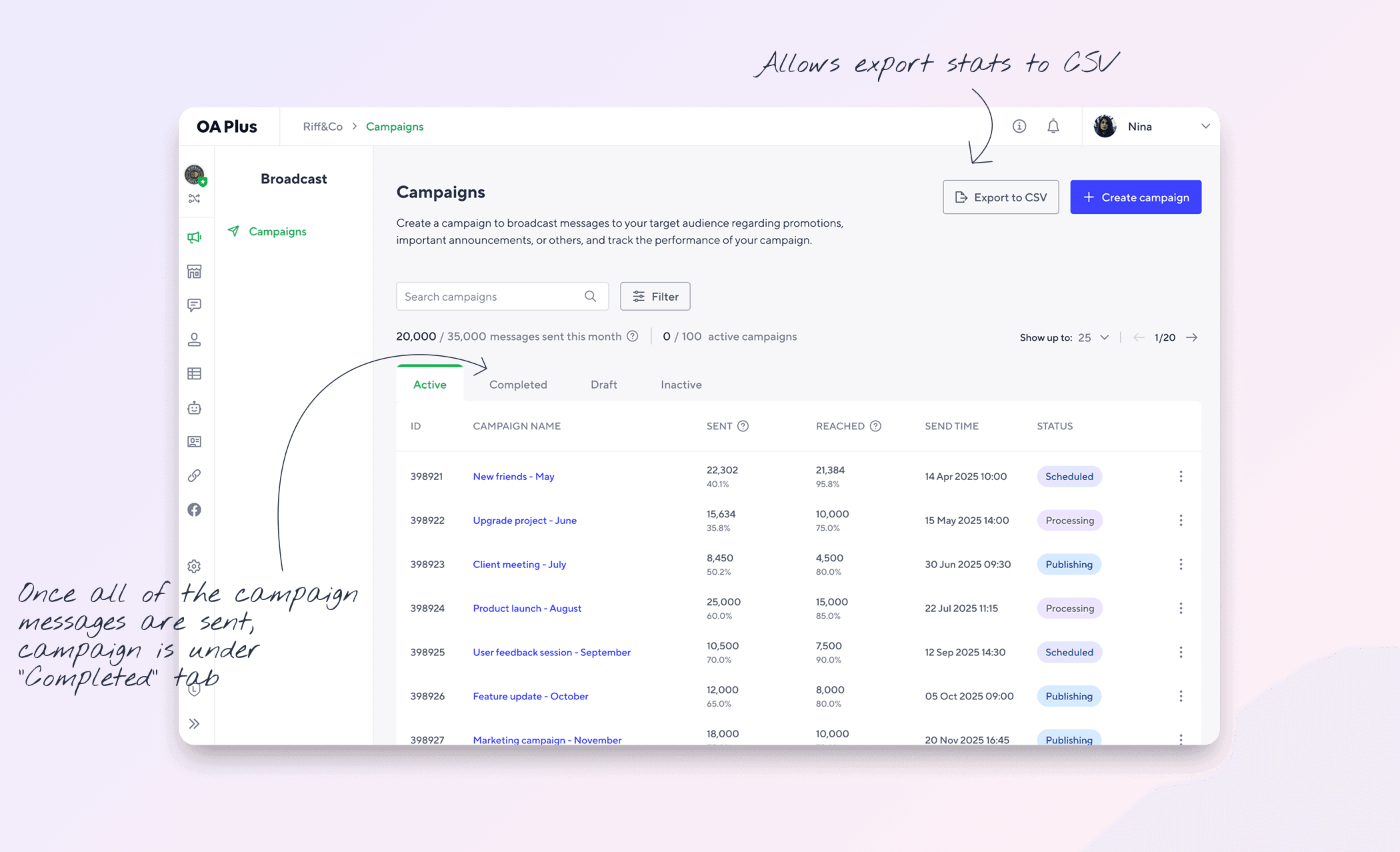
Campaigns page
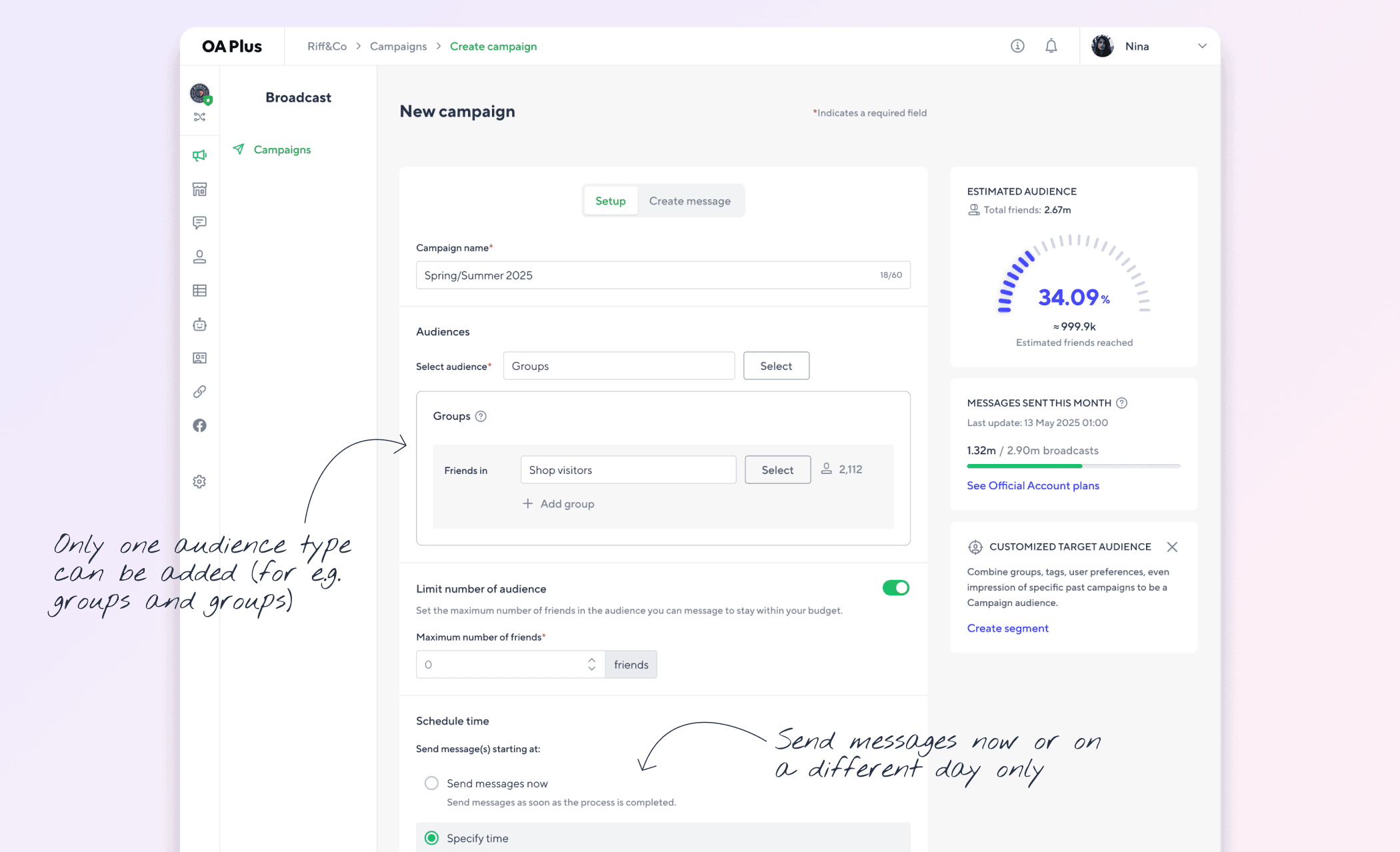
Create campaign page
For users
The gap meant manual repetition at scale. A welcome message for new subscribers had to be sent in batches. A re-engagement sequence for dormant contacts meant three separate campaigns, manually timed. Cart abandonment recovery was simply not possible. Users who needed triggered workflows were running OA Plus alongside Mailchimp or HubSpot, using the platform only for what it could do and routing everything else elsewhere.
For the business
This was a direct revenue problem. OA Plus monetises through message volume, and every automated workflow a business ran in another tool was message volume not flowing through the platform. Exit surveys and sales call notes pointed to the same thing: automation was the most-requested missing feature and the most common reason cited when users considered leaving.
Two design goals followed from this:
01. Reduce time to first workflow
Getting a workflow live should take minutes, not hours. Non-technical users should not need to understand logic trees to send a welcome message or a birthday offer.
02. Cover the 80% use case
Research pointed to four trigger types that covered the majority of automated messaging needs across SME accounts: friend birthdays, new friend welcomes, form submissions, and conditional responses to form questions. Design for those precisely rather than building an open-ended canvas that serves no one well.
"As a user, I want to automate my messaging workflows so that I can reach customers at the right moment without manual intervention for every step."
Methods
User interviews (15 SME users, 8 enterprise users), concept testing of a node-based builder prototype, competitive audit
What I looked at
How users currently created campaigns, and where the manual process broke down
Tools running outside OA Plus to fill the automation gap
How Mailchimp, ActiveCampaign, HubSpot, and Klaviyo structured their automation builders and onboarding
Key findings
80% of users needed only 3 to 4 workflow types; the remaining use cases were confined to enterprise accounts
Users consistently asked for templates, not a blank canvas: the top request was to start from a working workflow, not build one from scratch
67% of interviewed users were running at least one external tool alongside OA Plus specifically to handle automated or scheduled messaging
All four benchmarked competitors offered template libraries as the default entry point, with advanced editors available but not foregrounded
These findings shaped three core decisions:
Design four focused templates grounded in the actual trigger types users needed, not an open-ended workflow canvas.
Make each template self-explanatory from selection through to activation, so users with no automation experience could complete the flow without guidance.
The initial brief pointed toward a visual node-based builder: a drag-and-drop workflow editor giving users full control over triggers, conditions, and message sequences.
⇥ Node canvas: full flexibility to build any workflow sequence. The design was six weeks into development when the scope constraint arrived.
⇥ Condition branch nodes: branching logic for different user behaviours. Each node type required its own engineering implementation.
⇥ Trigger selector: entry point for every workflow. The breadth of trigger types was part of what made the full build expensive to complete in the revised timeline.
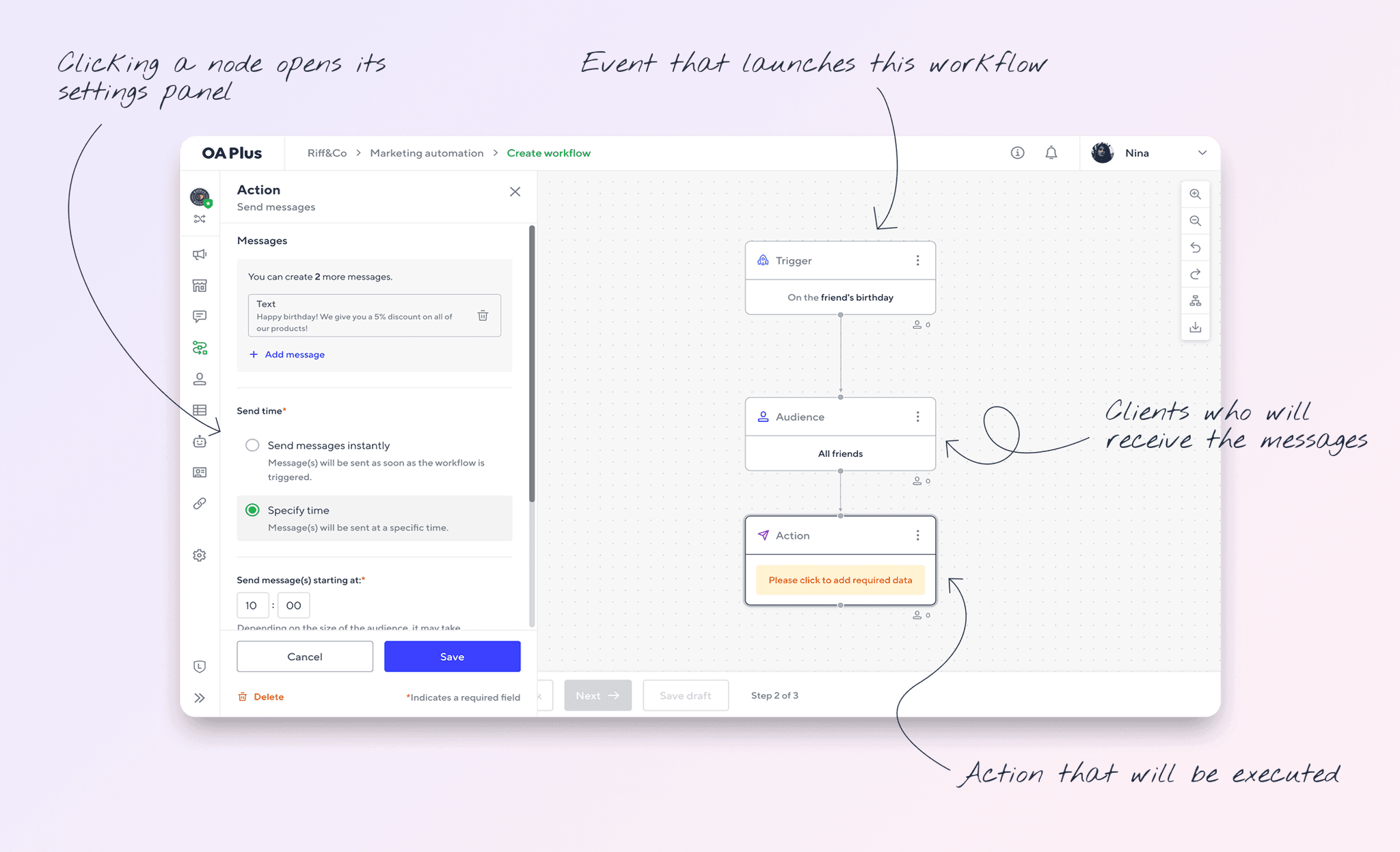
Initial workflow builder
Four months in, the business direction changed. Timeline and engineering capacity were cut, and the full node builder was no longer feasible within the revised scope. The ask was clear: launch something that works, and launch it sooner.
The design response was to pivot to a template-first approach: pre-built workflows covering the most common use cases, activatable in a few steps, with the backend engine preserved for a future phase. Tighter scope, but shippable. What made the direction easier to commit to was the usability data already in hand. The template approach was not a fallback. For the majority of the user base, it was the better fit anyway.
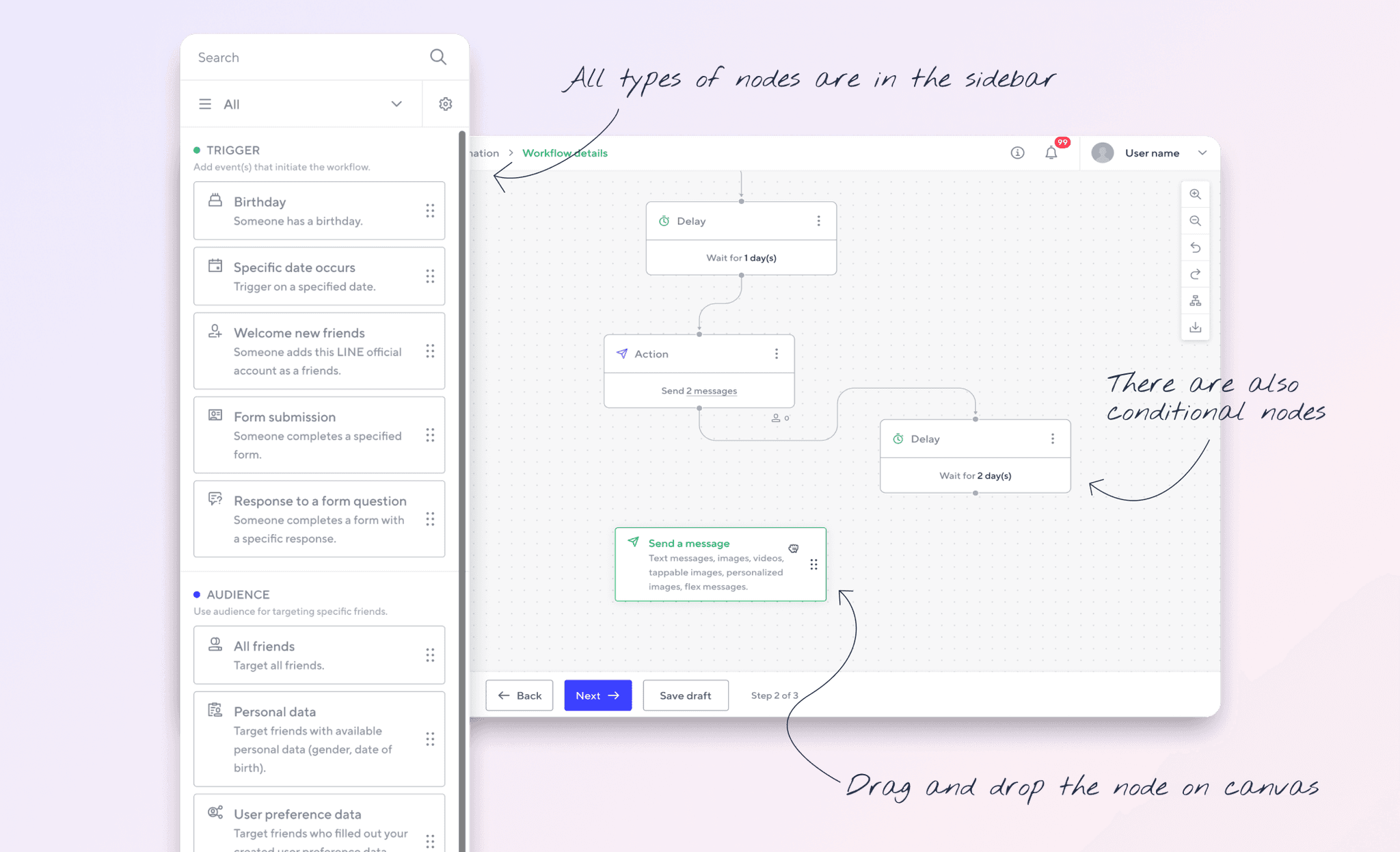
This variant allowed to build complex scenarios by mixing different node types and conditions.
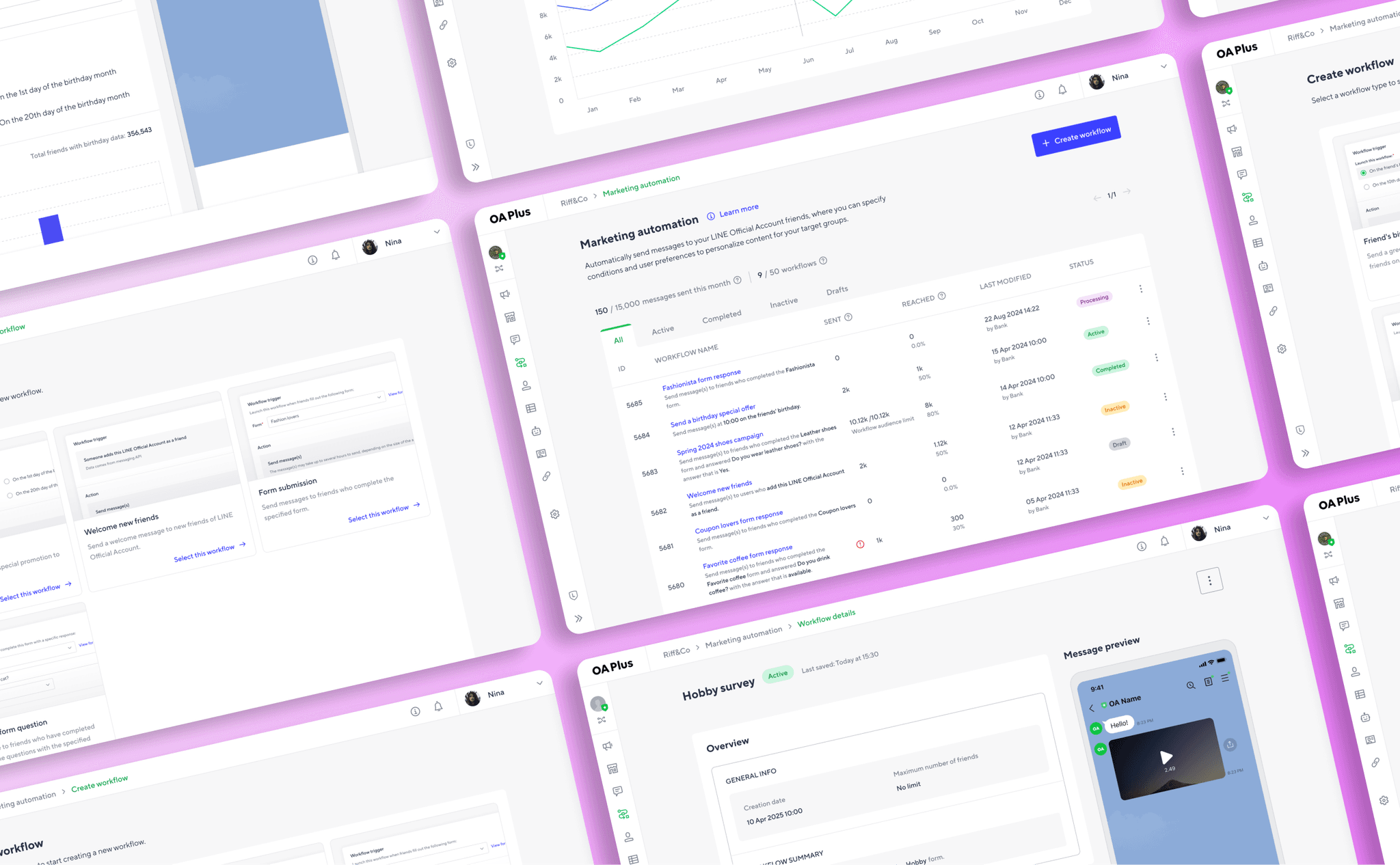
The main page is a management surface: it shows all workflows, their status, and their performance in a single view. Users who log in to check on an active workflow, pause one, or review what ran last week can do it from here without drilling into individual records.
⇥ Quota counters (150 / 15,000 messages this month, 9 / 50 workflows) surface account limits at a glance. Users know where they stand before creating a new workflow, without navigating to a settings page.
⇥ Status filter tabs (All, Active, Completed, Inactive, Drafts) lets users focus on what needs attention. A user checking which workflows are live does not have to scan the full list.
⇥ Workflow name and trigger description in one cell tells the user what the workflow does and what triggers it. No clicking through to understand the setup.
⇥ Sent and Reached data is visible from the list. Users can compare workflow effectiveness without opening each one individually.
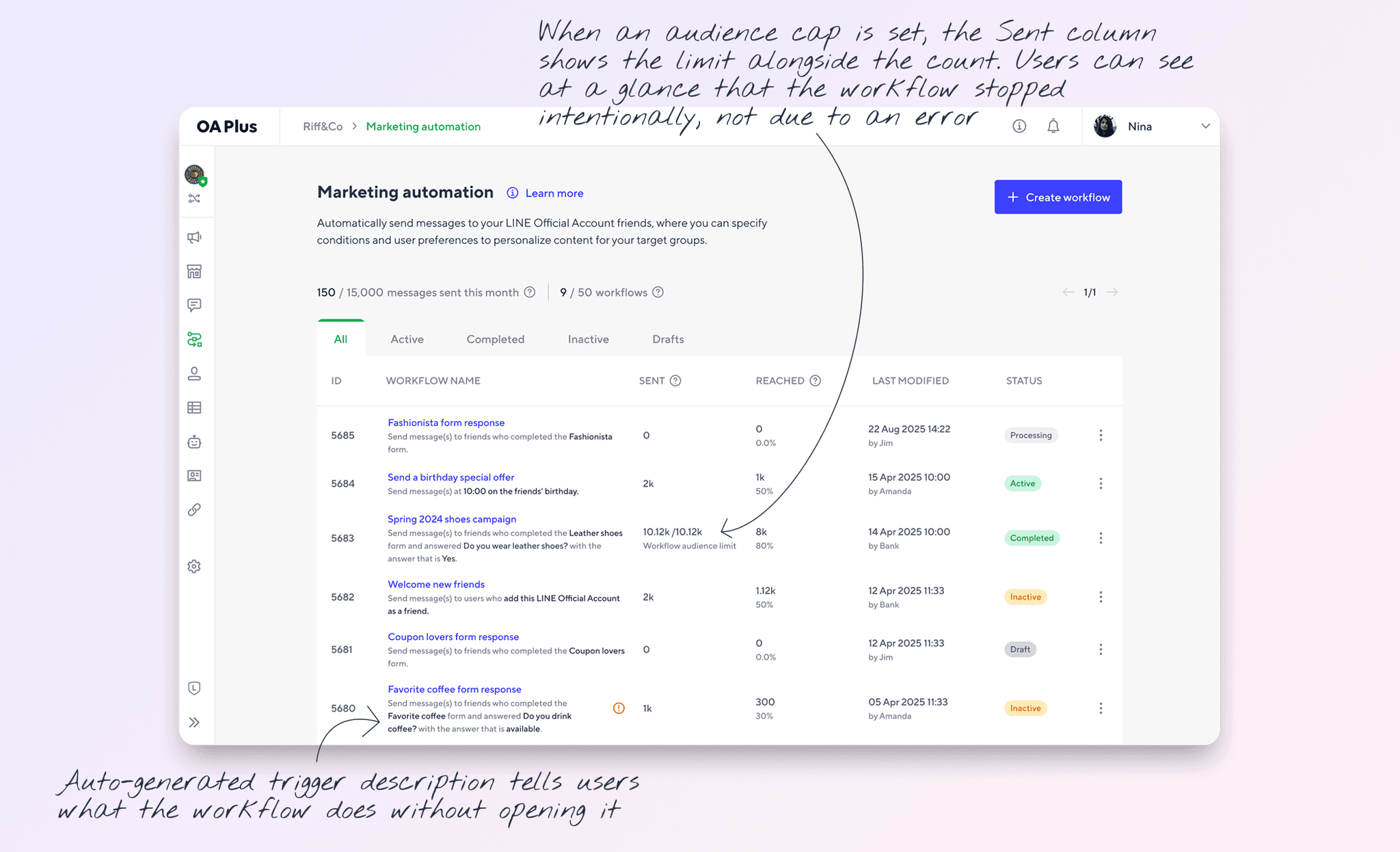
The "Create workflow" button leads into the template selection flow. The two surfaces are intentionally separate: management and creation are different jobs, and combining them into a single screen would have made both harder to use.
The five statuses visible on the list (Draft, Processing, Active, Inactive, Completed) are the surface expression of a state machine that required significant design documentation before engineering could implement it. The logic behind each status varies by workflow type and trigger: a birthday workflow behaves differently from a form submission workflow when it reaches quota limits, when its subscription lapses, or when its trigger condition can no longer be met.
For users running multiple workflows, the ability to filter by status and scan performance from the list removes a layer of ongoing management overhead. Automation only delivers value if users can monitor it without friction. A management surface that makes checking on a workflow as easy as creating one is what keeps automation active rather than abandoned.
Step 1
Choose one of the templates: Friend's birthday, Welcome new friends, Form submission, Response to a form question.
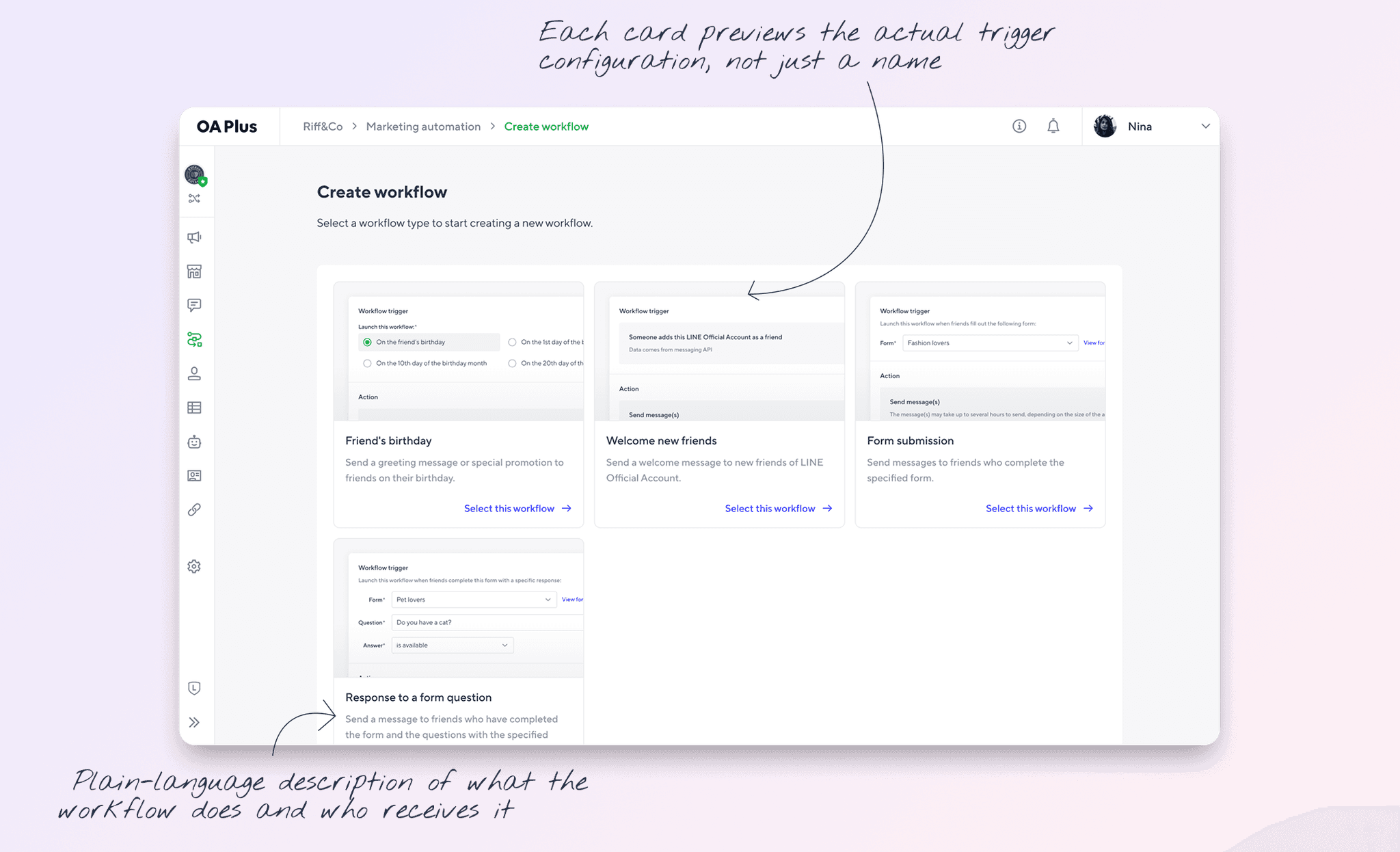
Four templates cover the trigger types with the highest relevance to LINE OA accounts. Each card shows a live preview of the trigger configuration so users understand how the workflow fires before selecting it. The starting point is never a blank form.
⇥ Trigger preview inside each card, not just a label. Users can see how the workflow fires before selecting it.
⇥ Short, goal-oriented labels. 'Welcome new friends' is more actionable than 'New subscriber trigger'.
⇥ "Select this workflow" CTA per card as one action to proceed. The next screen is the setup form for the chosen template.
Step 2
Adjust setup settings.
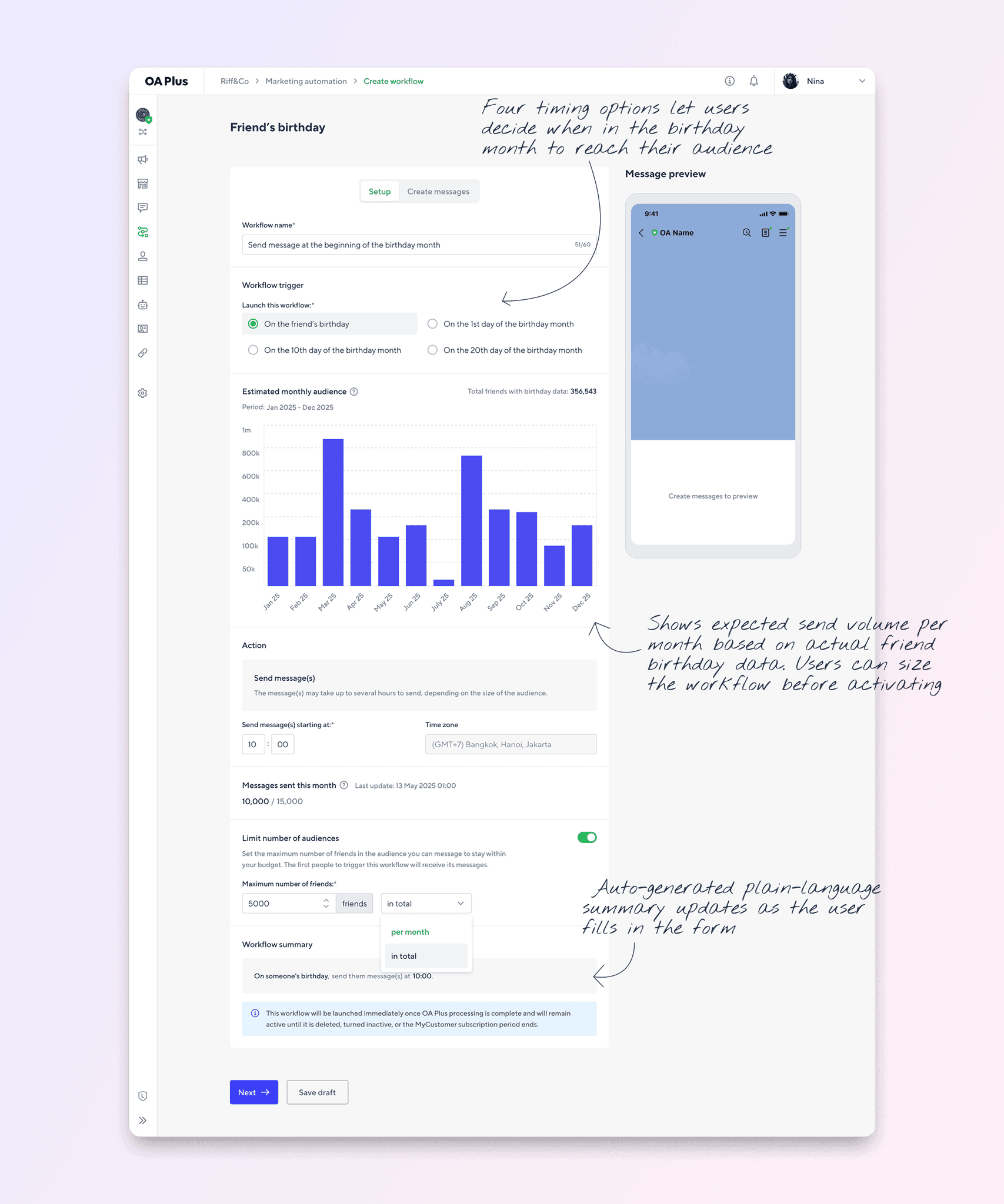
The birthday template surfaces more data than any other template because the trigger has more variables. Timing, send time, audience size, and quota are all configurable in one screen. The estimated audience chart lets users anticipate send volume before committing, and the audience cap gives budget-conscious accounts a hard ceiling without having to deactivate the workflow manually.
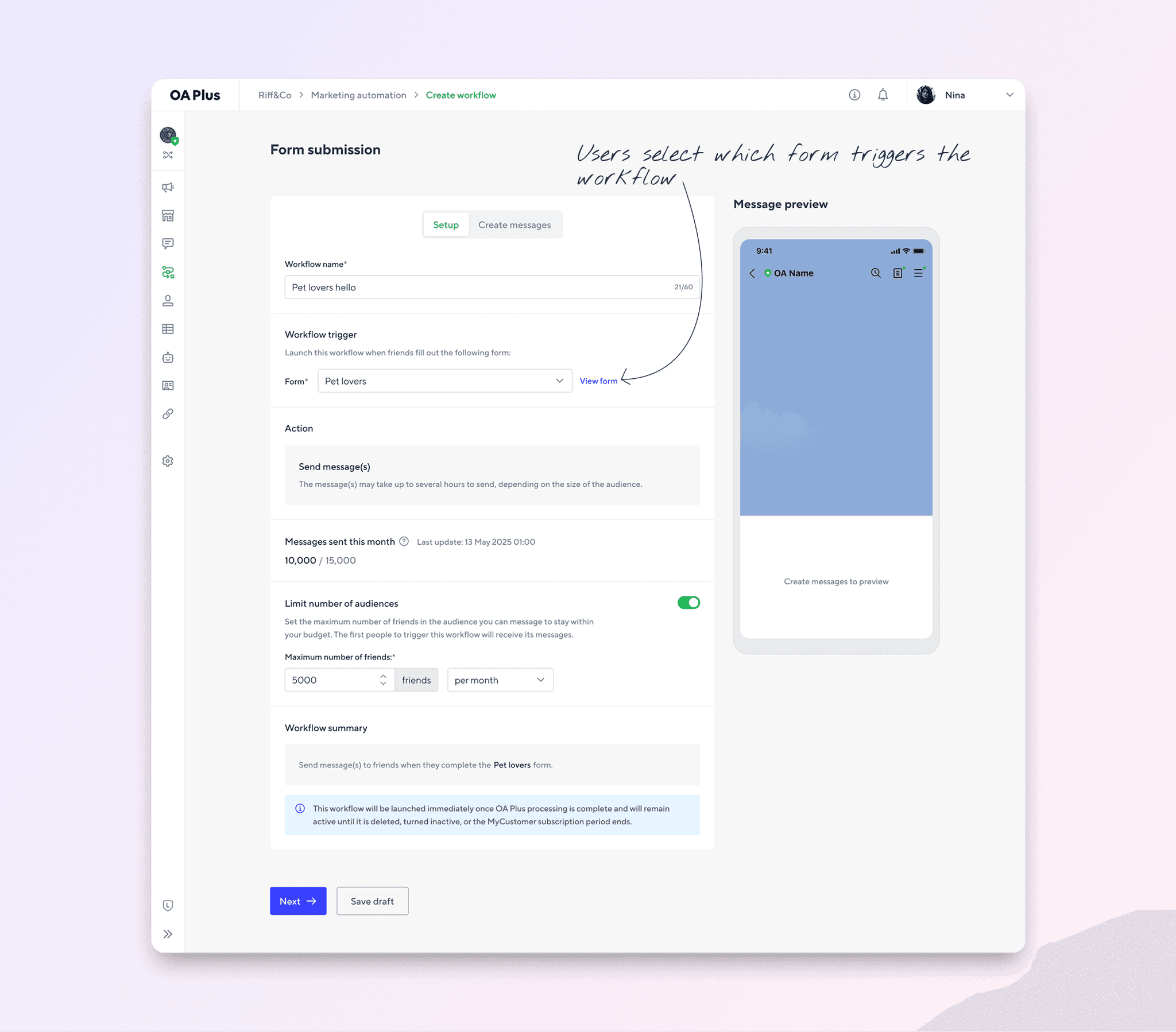
Form submission is the simplest setup of the four templates. The only required trigger input is selecting a form. Everything else follows from that choice, including the workflow summary, which populates automatically with the form name once selected. Users who have already built forms in OA Plus can connect them to an automated message response in under a minute.
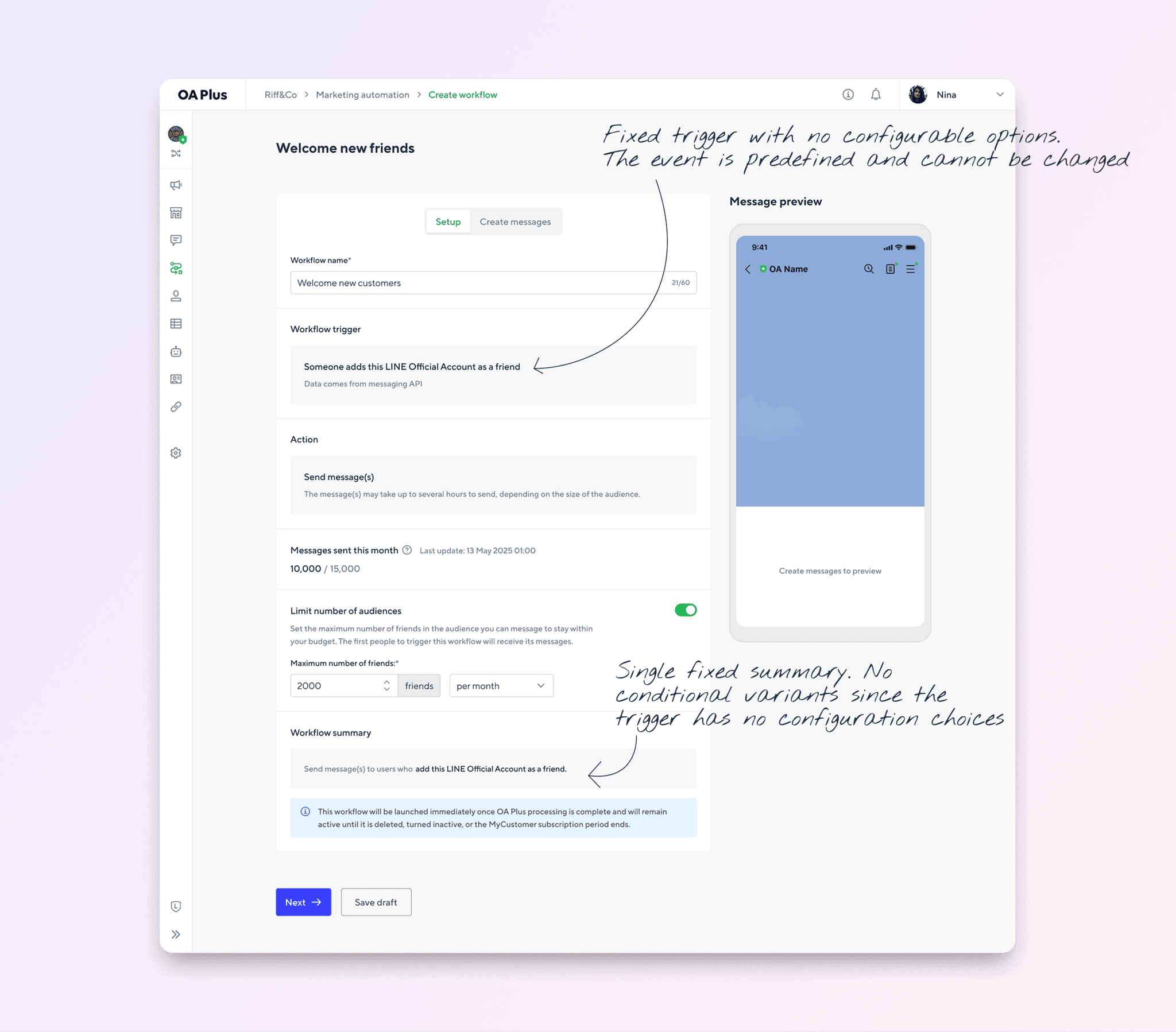
Welcome new friends is the most straightforward setup of the four templates. The trigger is fixed and requires no input, so the only meaningful decisions are the workflow name, whether to cap the audience, and the message content. Users can have a working welcome workflow live in minutes.
⇥ Trigger options: each template surfaces only the configuration relevant to its trigger. Birthday shows four timing variants. Welcome new friends shows a fixed trigger with no options to set.
⇥ Auto-generated workflow summary: plain-language description of what the workflow will do, assembled from the trigger fields the user has filled in. Confirms the setup without requiring the user to re-read the form. The summary is conditional: it changes based on which template is active and which trigger options have been selected.
⇥ Limit number of audiences toggle (off by default) is an optional cap on how many friends the workflow can reach. Available when needed, invisible when not."
⇥ Message preview panel is a live preview of the message as it will appear on LINE. Updates as content is added in the "Create messages" tab.
⇥ Users can exit without activating the workflow. The workflow stays as a draft until they are ready.
Step 3
Create message.
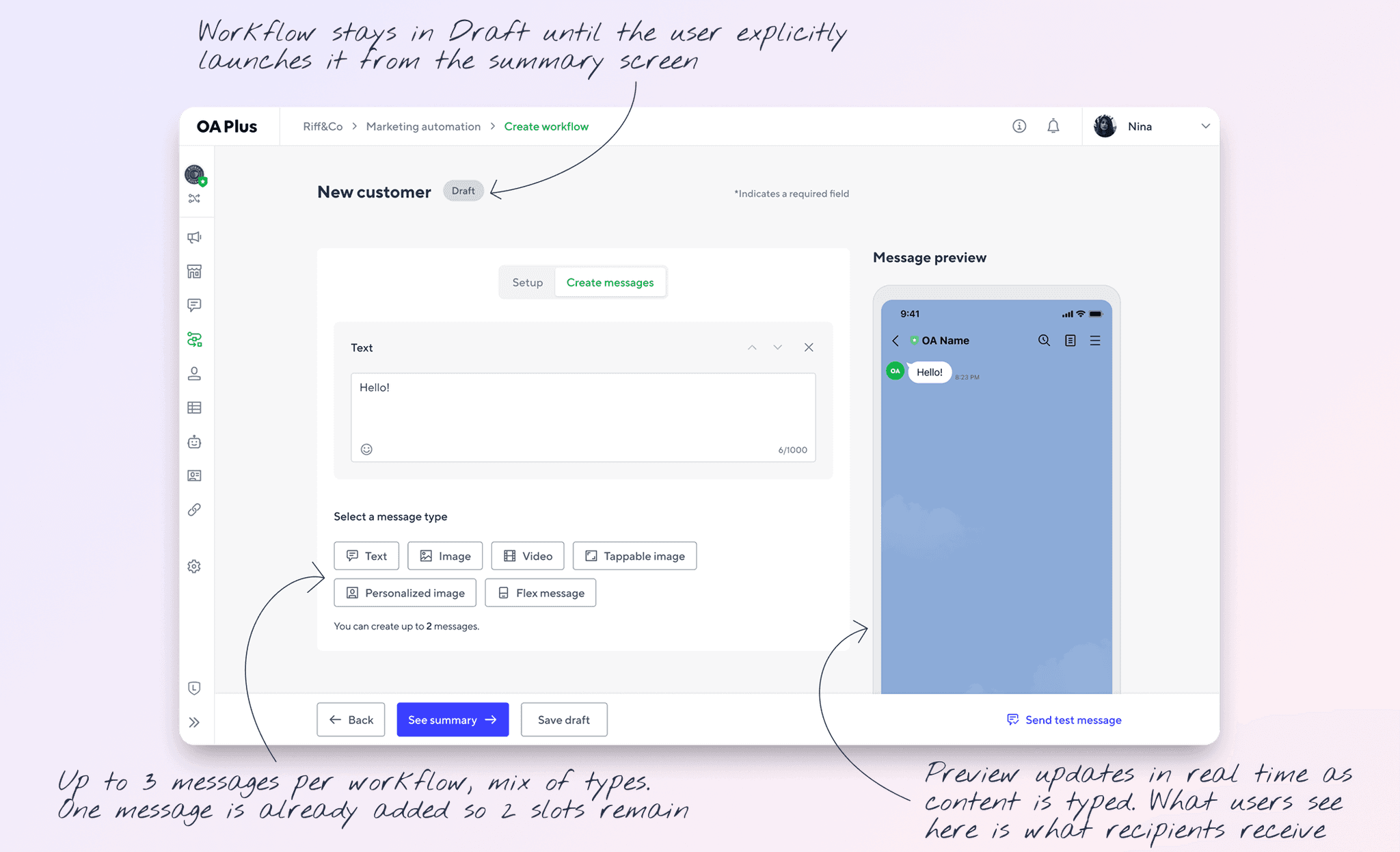
The Create messages tab is the same across all four templates and inherited directly from the Campaigns feature. Users who have sent a broadcast before need no orientation here. Up to three messages can be added per workflow, and the live preview on the right renders each one as it will appear to recipients on LINE messanger.
⇥ Message type selector: users pick and add up to 3 messages per workflow. The selector disappears once the limit is reached.
⇥ Live message preview updates in real time as content is added. Users see the message as it will appear in LINE without sending a test.
⇥ Send test message button sends the current draft to the user's own LINE account. Confirms the real rendering before the workflow goes live.
Step 4
See summary and launch workflow.
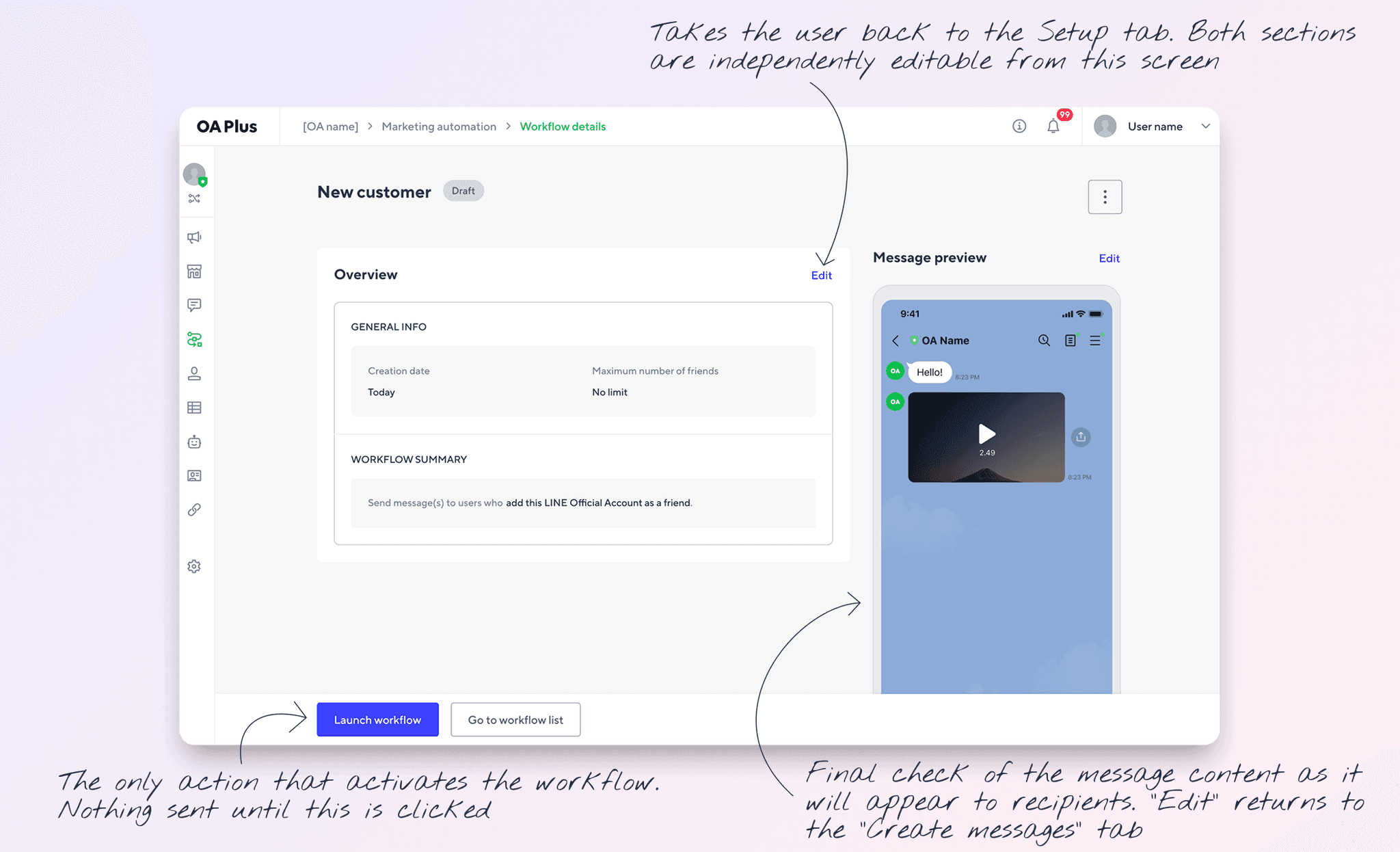
The summary screen is the last step before a workflow goes live. It brings together the trigger configuration and message content in one view so users can confirm everything looks right without re-opening each tab. Both sections have independent Edit shortcuts, so a last-minute correction does not require starting over.
⇥ Overview panel shows creation date, audience limit, and the auto-generated workflow summary. Users can review the full configuration in plain language before committing.
⇥ Conditional workflow summary generated from the Setup step appears here in context. For form-based workflows this includes the form name, giving users a final check that the right trigger is set.
⇥ Message content is previewed as it will appear in LINE. Both the overview and the message have independent "Edit" shortcuts so users can correct either without re-doing the full flow.
Every required step in a creation flow is a potential exit point, but a review step at the end earns its place. Users who reach the summary can catch a misconfigured trigger or a missing message before the workflow goes live to their entire audience. The independent Edit shortcuts mean fixing an error does not send users back to step one. Reusing the Campaigns message editor removed the learning curve for step three entirely: users who had sent a broadcast before already knew how to complete it.
The workflow summary looks like a single field but is a conditional copy system underneath. Each template has its own summary logic, and within templates like Form submission and Response to a form question, the text changes based on the question type and the answer condition set. This was scoped and written as part of the design work to ensure the summary remained accurate regardless of which configuration path the user took.
The same principle applies to the state machine. The five workflow statuses users see on the management page each have type-specific definitions: what triggers the transition into that state, what conditions keep a workflow there, and what moves it out. A birthday workflow that has sent to all eligible friends reaches Completed differently from a form submission workflow paused by its creator. Mapping this logic explicitly was the design work that made the statuses meaningful rather than decorative.
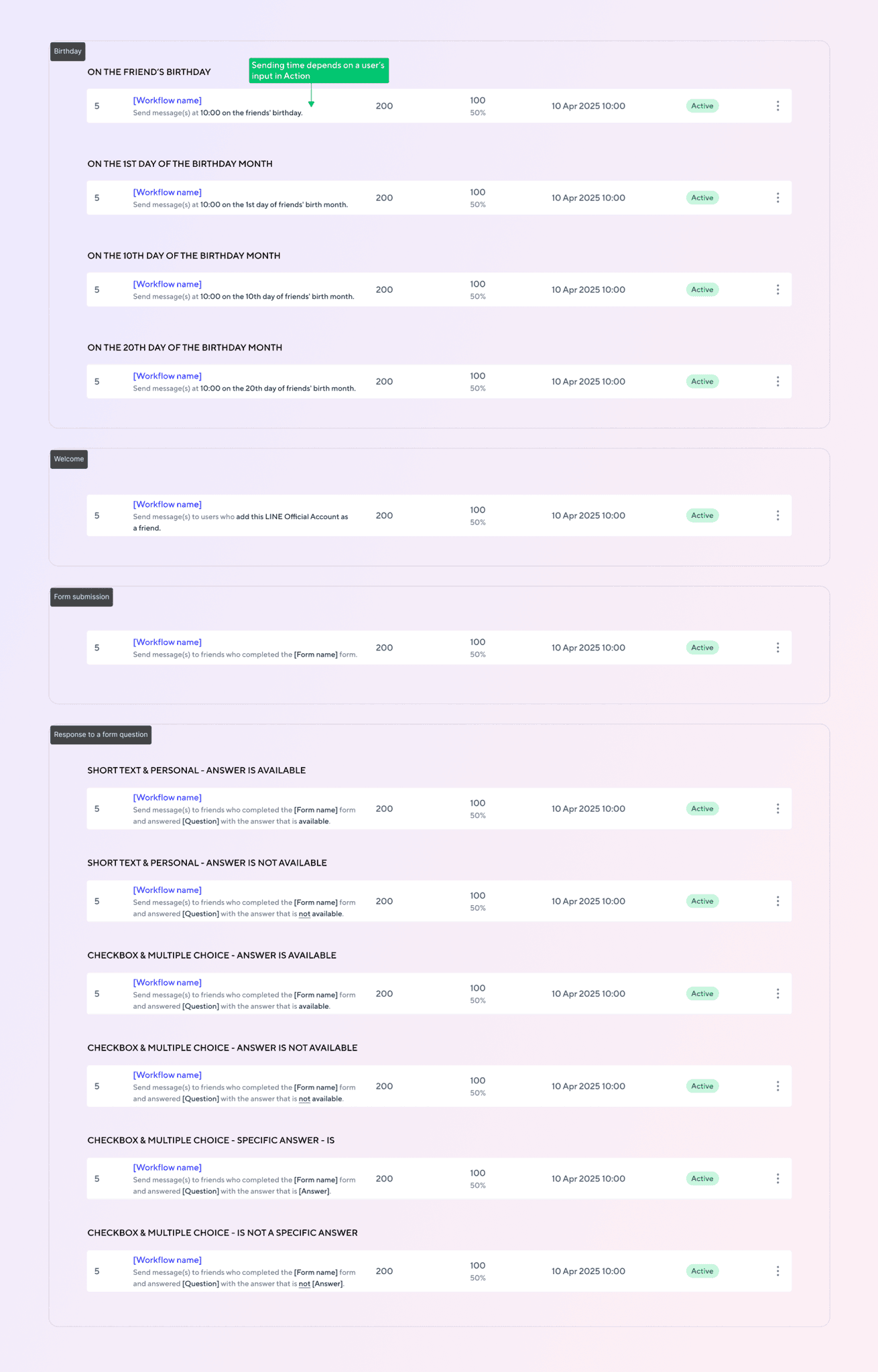
The workflow summary visible in the list is not a single static string. It is generated from the workflow's trigger configuration and changes based on template type, timing choice, question type, and answer condition. Birthday produces four variants depending on when the message is scheduled to send. Welcome has one fixed variant since its trigger has no configurable options. Form-based templates produce six variants depending on whether the question accepts free text or multiple choice, and whether a specific answer match is required. When the generated text exceeds three rows, the list truncates it and surfaces the full version in a tooltip on hover.
⇥ Birthday: four summary variants based on the timing option selected (on the birthday, 1st of the month, 10th, 20th).
⇥ Form submission and Response to a form question: summary text branches by question type (short text, checkbox, multiple choice) and answer state (answer available, answer not available, specific answer match, specific answer not matched). Each combination produces a distinct summary.
⇥ Welcome new friends: single fixed summary, no conditional variants. The trigger has no configurable options.
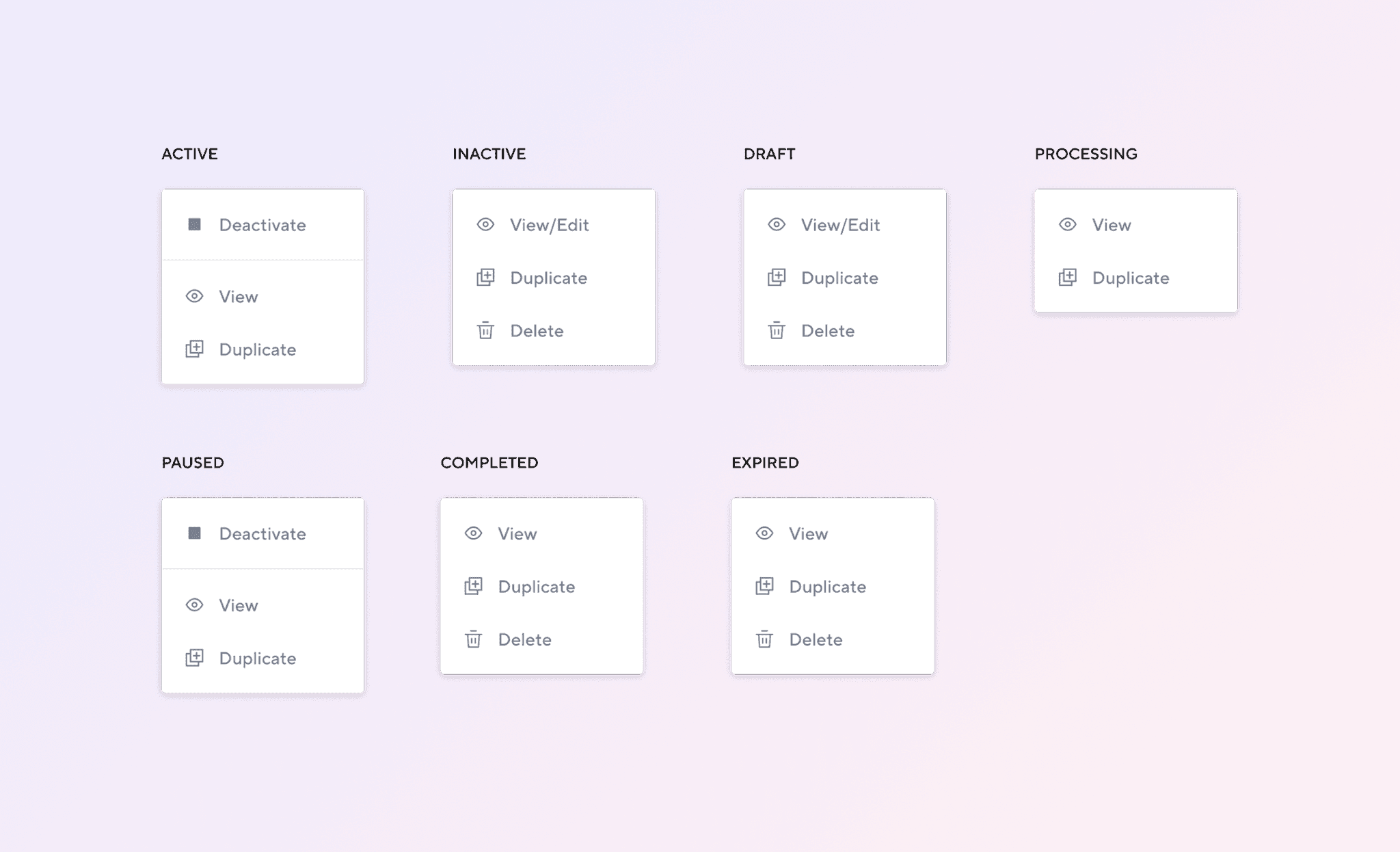
Each status exposes only the actions that are safe at that stage. Active and Paused workflows cannot be deleted while they have live send activity. Processing workflows are locked to View and Duplicate only. Edit access is limited to Inactive and Draft, where no messages are in transit.
Users trust a product when it behaves predictably. A summary that accurately describes what a workflow will do, regardless of how it was configured, means users can commit to activating without second-guessing what they set up. A status system with consistent, type-specific definitions means users can manage their workflows without guessing why something stopped or contacting support to find out. The conditional logic is invisible in the UI, but it is what makes the feature feel considered rather than cobbled together.
Constraints are a design input, not just a design obstacle
The scope cut forced a decision that research data had already been pointing toward: most users needed focused templates, not a canvas. The constraint and the user need aligned. That does not always happen, but when it does, the job is to recognise it quickly and commit rather than mourn the original plan.
The invisible work carries as much weight as the visible work
The workflow summaries and state machine logic are not features users notice. But they are what makes the feature feel considered rather than cobbled together. A summary that accurately describes what a workflow will do, regardless of how it was configured, builds trust. A status label with a consistent, predictable definition makes the management page usable. Designing the logic behind the interface is design work.
Defaults carry more weight than options
Every optional field, every advanced toggle, every extra step in a configuration flow is a decision the user has to make. In a product serving non-technical users, the defaults are the product. The template defaults covered the majority of use cases without any customisation. That is not a limitation. That is the design doing its job.